
Introduction: “Why Does My Photo Look Worse Than the Original?”
This is one of the most common (and frustrating) issues I see in photo restoration and retouching.
A client sends what they believe is a high-quality image…
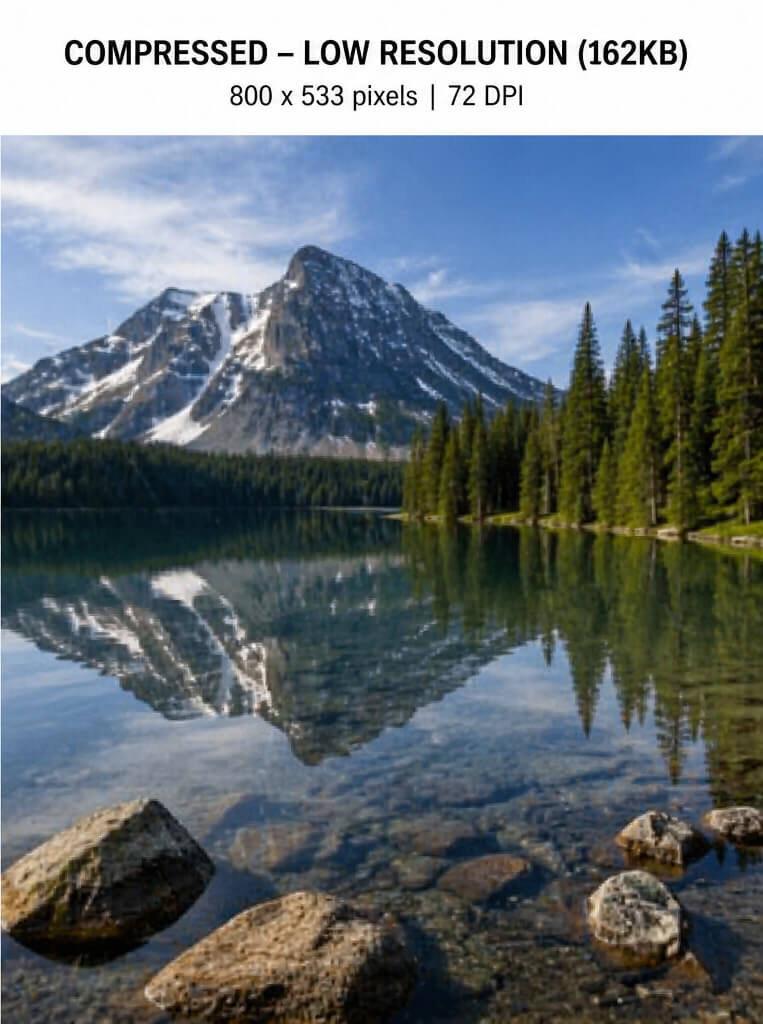
But when I open it, it’s a heavily compressed, low-resolution version—often reduced from several megabytes down to a few hundred kilobytes.
The result?
Limited detail, reduced quality, and unrealistic expectations about what can be achieved in retouching.
In this article, I’ll explain:
- The difference between full-resolution (300 DPI) images and compressed files
- How phones and email silently reduce image quality
- Why this matters for professional retouching
- And how to send your photos properly
What Does 300 DPI Actually Mean?
Let’s simplify this.
A 300 DPI (dots per inch) image is considered full resolution for print. It contains enough pixel data to produce sharp, detailed prints without visible pixelation.
High-resolution images typically:
- Have large pixel dimensions (e.g. 4000 × 3000 pixels)
- Contain far more detail
- Are several megabytes in size
For example:
- A modern phone photo: 3MB–12MB+ ()
- High-resolution camera files: even larger
This detail is what allows:
- Skin texture to be refined
- Scratches to be repaired
- Fine retouching work to look natural
Why File Size Matters More Than People Realise
File size (KB vs MB) is often the biggest clue to image quality.
- Megabytes (MB) = high detail, more data
- Kilobytes (KB) = heavily compressed, reduced detail
Compression works by removing image data to make files smaller ()
That missing data is exactly what retouchers rely on.
Once it’s gone—it’s gone.
What Happens When You Upload Photos to Your Phone or Tablet
Many people don’t realise this:
When images are:
- Downloaded from messaging apps
- Saved from social media
- Synced through certain cloud services
They are often automatically compressed.
This can result in:
- Reduced resolution
- Loss of fine detail
- Smaller file sizes
A full-resolution image can easily drop from:
- 5MB → 300KB (or less)
Visually, on a phone screen, it may still “look fine”—but zoom in or try to edit it, and the quality loss becomes obvious.
The Hidden Problem with Email Attachments
Email is one of the biggest culprits.
Most email providers:
- Limit attachments to 20–25MB total ()
- Automatically compress images
- Resize large photos before sending
Typical compression process:
- Resize from ~4000px → ~1600px
- Reduce quality to ~70–80%
- Cut file size by 60–75% ()
This is fine for viewing—but not for professional editing.
A Real-World Problem I See Too Often
I’ve had clients unintentionally lose entire wedding albums this way:
- Upload full-resolution images to their phone
- The phone compresses or downsizes them
- Original files are deleted
- Only low-quality versions remain
At that point:
- Print quality is gone
- Fine detail is lost
- Restoration options become limited
It’s not uncommon—and it’s irreversible.
Why This Affects Retouching Results
When you send a compressed image, you’re effectively giving a retoucher:
- Less information to work with
- Fewer pixels to repair
- Reduced tonal range
This means:
- Skin edits look flatter
- Sharpening introduces artefacts
- Restorations become approximations rather than true repairs
In short:
You’re not seeing the full potential of the work—you’re seeing the limits of the file.
Why Photos Can Look “Fine” on Your Phone
This is where confusion happens.
Compressed images often:
- Look sharp on small screens
- Hide flaws at normal viewing size
But:
- Zoom in → quality falls apart
- Print it → pixelation appears
As one common explanation puts it, resolution determines how much detail an image can actually contain, while compression reduces that data to save space ()
How to Send Photos Properly (Without Losing Quality)
If you want the best possible results, always send original files.
Best Methods:
- WeTransfer
- Dropbox
- Google Drive
These platforms:
- Preserve full resolution
- Avoid automatic compression
- Maintain original file size and quality
Avoid:
- Sending via SMS or messaging apps
- Emailing large batches of images
- Screenshots or re-saved images
Key Takeaway – Always Keep Your Originals
The most important rule:
Never delete your original high-resolution images.
Once a photo has been:
- Compressed
- Resized
- Re-saved multiple times
…it can never truly be restored to its original quality.
FAQ: Photo Resolution, File Size & Sending Images
What is the difference between DPI and resolution?
DPI (dots per inch) relates to print quality, while resolution refers to the number of pixels in an image (e.g. 4000 × 3000). For editing and restoration, pixel dimensions matter most, as they determine how much detail is available.
Why do my photos lose quality when I send them?
Most platforms—especially email, messaging apps, and social media—automatically compress images to reduce file size. This removes image data, which leads to lower quality.
Why does my photo look fine on my phone but poor when printed?
Phone screens are small and hide imperfections. When you print or zoom in, the lack of detail in a compressed image becomes visible, resulting in blur or pixelation.
Can a low-resolution image be restored to high quality?
Not fully. While some improvements can be made, lost detail cannot be recreated. High-quality restoration always depends on having the best possible original file.
What file size should my photos be for professional retouching?
Ideally, images should be:
- Several megabytes in size (MB, not KB)
- Original camera or scan files
- Full resolution (not downloaded or resized versions)
Does emailing photos reduce their quality?
Yes, in many cases. Email providers often:
- Compress images
- Resize large files
- Reduce overall quality
This makes them unsuitable for professional editing.
What is the best way to send photos without losing quality?
Use file transfer services such as:
- WeTransfer
- Dropbox
- Google Drive
These platforms keep your images at full resolution with no compression.
Can I use photos saved from WhatsApp or social media?
These are usually heavily compressed and not ideal for retouching or printing. Always try to send the original file instead.
Should I keep my original photos after sending them?
Absolutely. Always keep your original files as a backup. Once a photo is compressed or resized, the original quality cannot be recovered.
Final Thoughts
AI tools and modern apps make sharing photos incredibly easy—but often at the cost of quality.
Understanding the difference between:
- A 300 DPI, full-resolution image
- And a compressed phone or email version
…is essential if you care about:
- Print quality
- Professional retouching
- Long-term preservation
If you’re unsure whether your image is suitable, I’m always happy to take a look and advise before any work begins.
Further Reading
For more on this topic, you can read my earlier article here:


